
Handover
Work with document revisions
The latest revision opens by default. Here's how to find, compare and flag older ones.
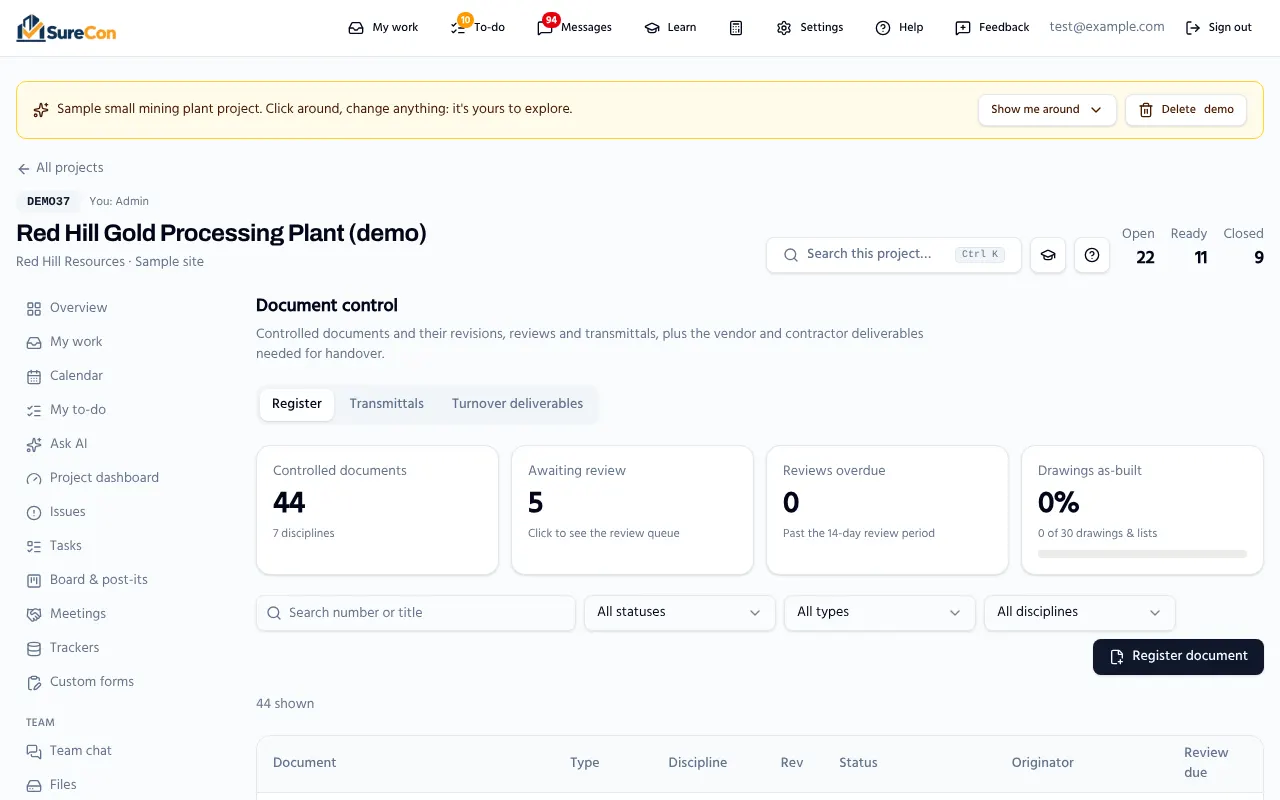
- 1
Issue a new revision
Open the document in Documents and choose New revision. Pick the revision number and purpose (for review, for approval, for construction) and attach the file. It's logged on a transmittal automatically.
- 2
The latest is always the default
Everyone who opens the document, drawing or file sees the current revision first, marked current.
- 3
See an older revision
Click the revision number (for example Rev C · current) and pick an older one, or click a revision number in the revision history.
- 4
Know when you're looking at old information
An old revision shows a red warning with the current revision number. Downloaded old PDFs are stamped SUPERSEDED on every page, and the file name starts with SUPERSEDED.
- 5
Vendor documents and library files
Deliverables keep every file submitted, and Knowledge library documents have New version. Older files are in the same revision list.